



Keeping your website current matters. The Divi Visual Builder lets you edit text, swap images, and adjust layouts directly on the page… no code, no stress. Design with intent.
These instructions are based on using Divi 5.
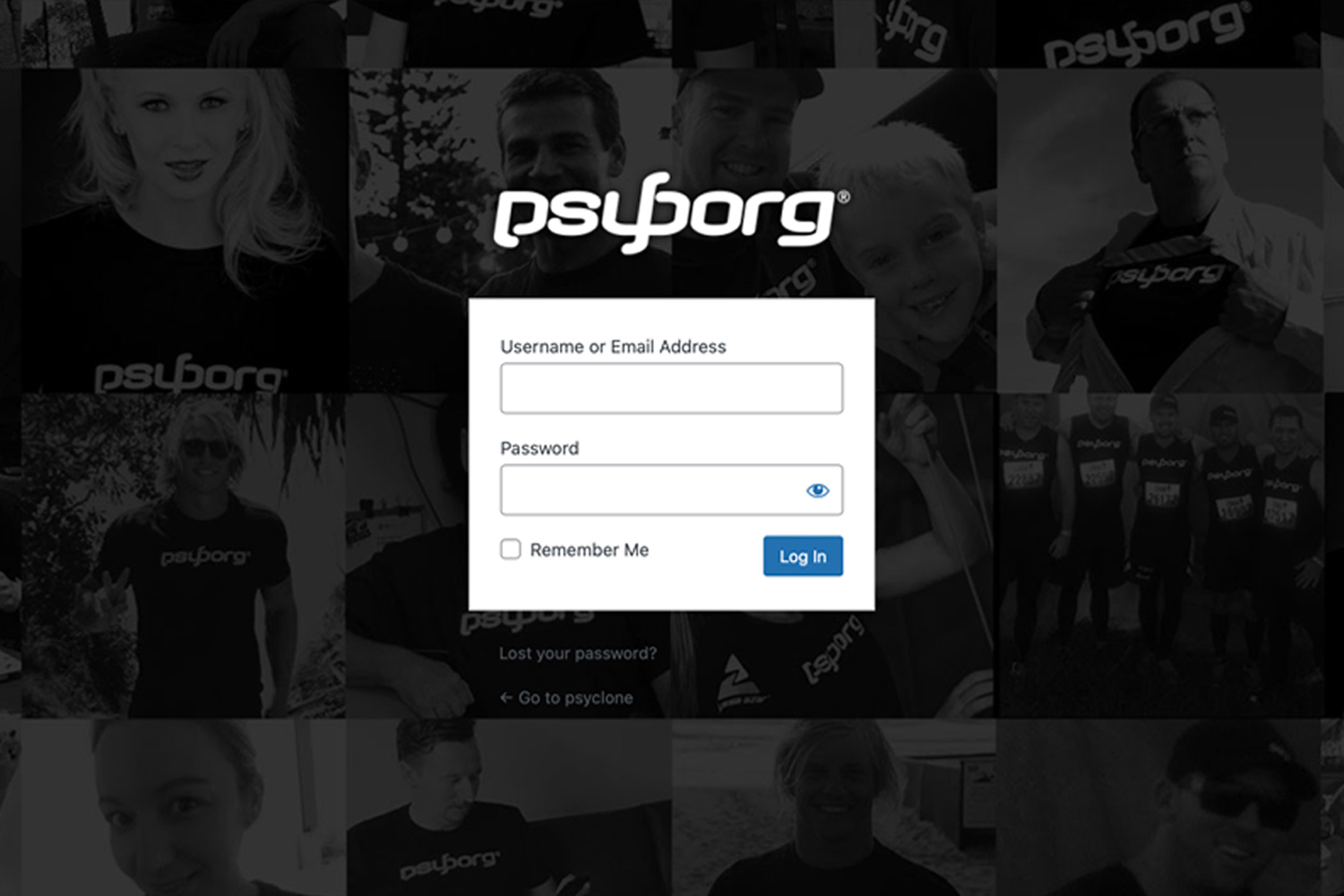
Step 1 – Log In
- Go to yourdomain.com.au/wp-admin
- Enter your username and password
- Select Login
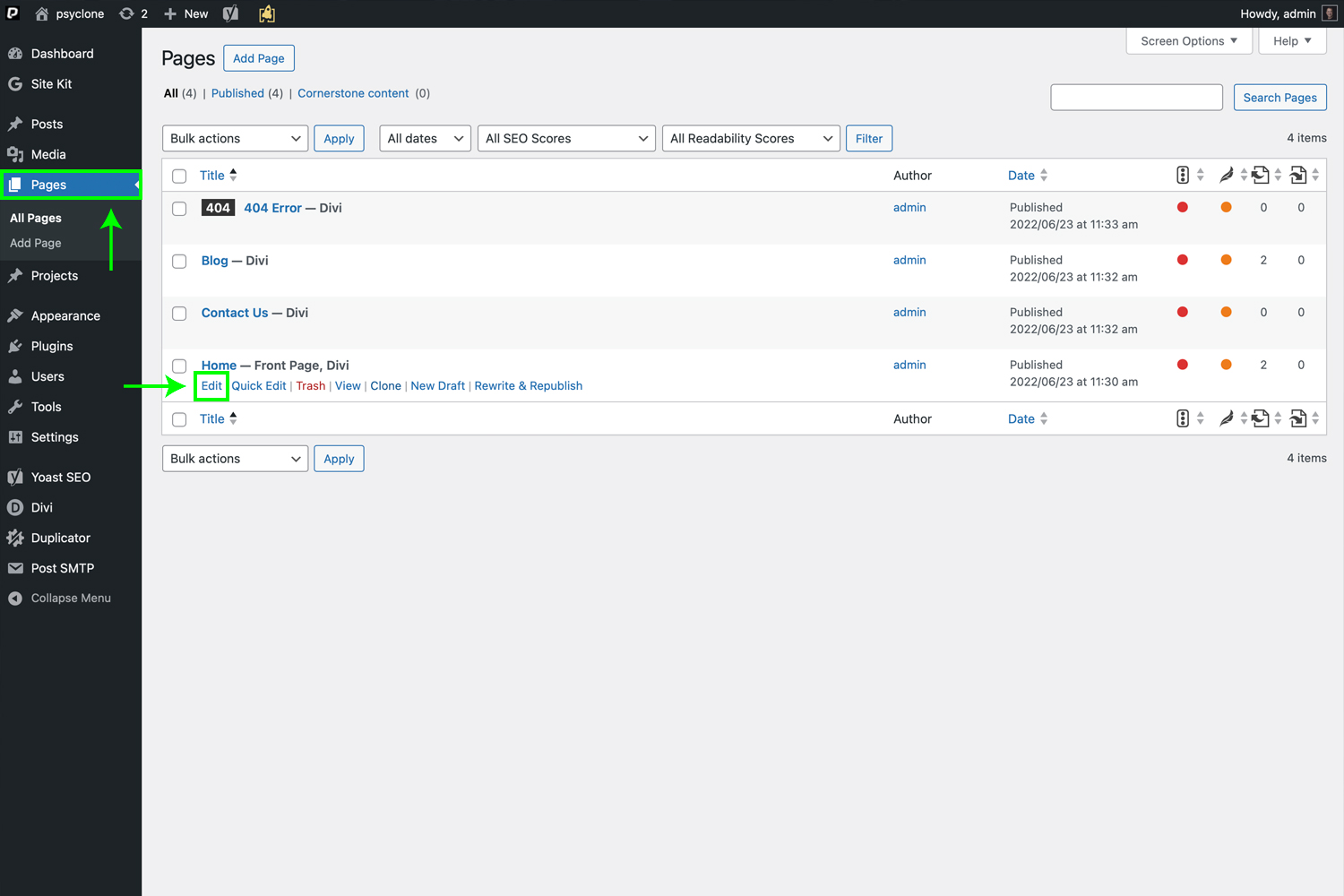
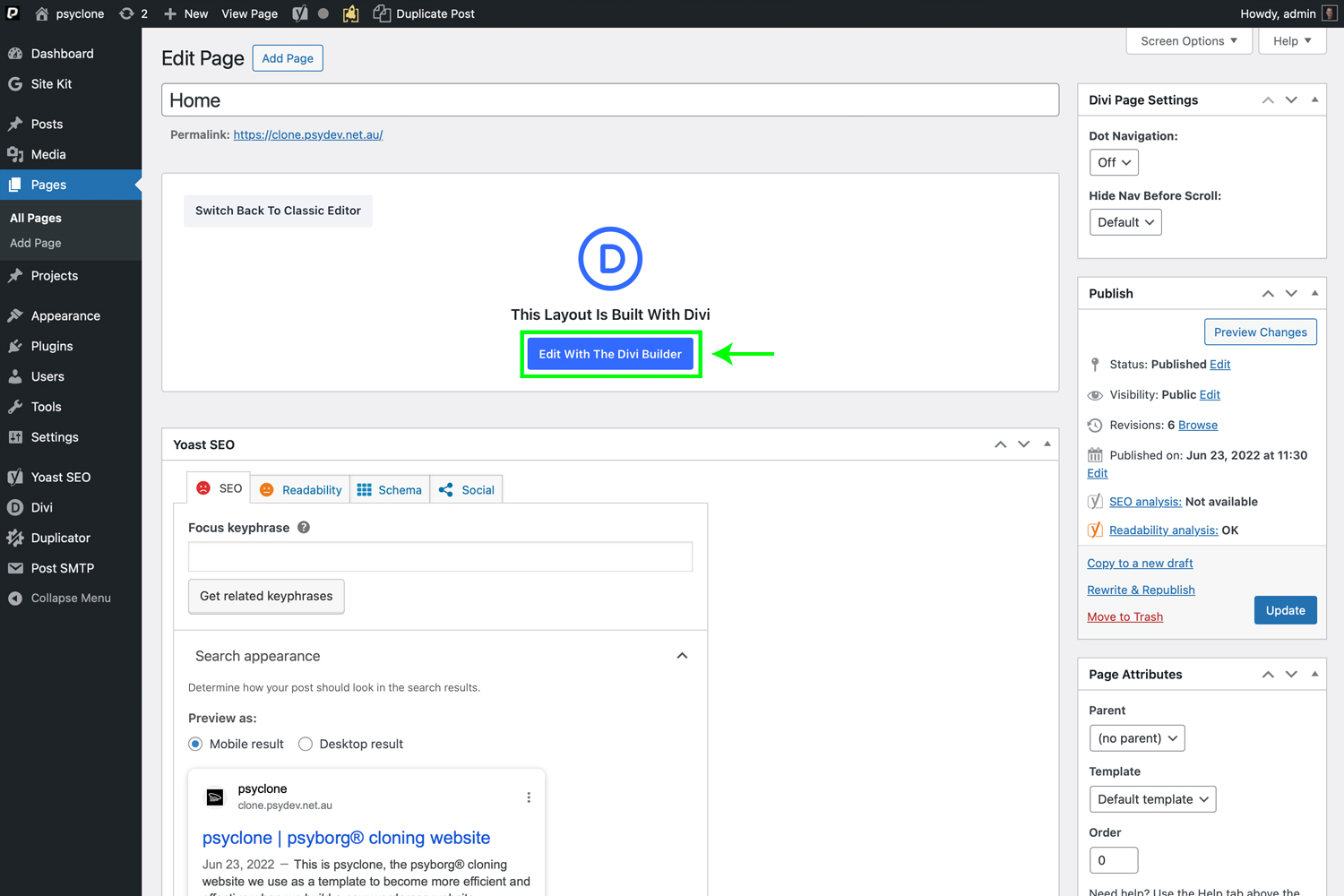
Step 2 – Open the Page to Edit
- Navigate to Pages
- Select the page you want to update
- Click Enable Visual Builder at the top
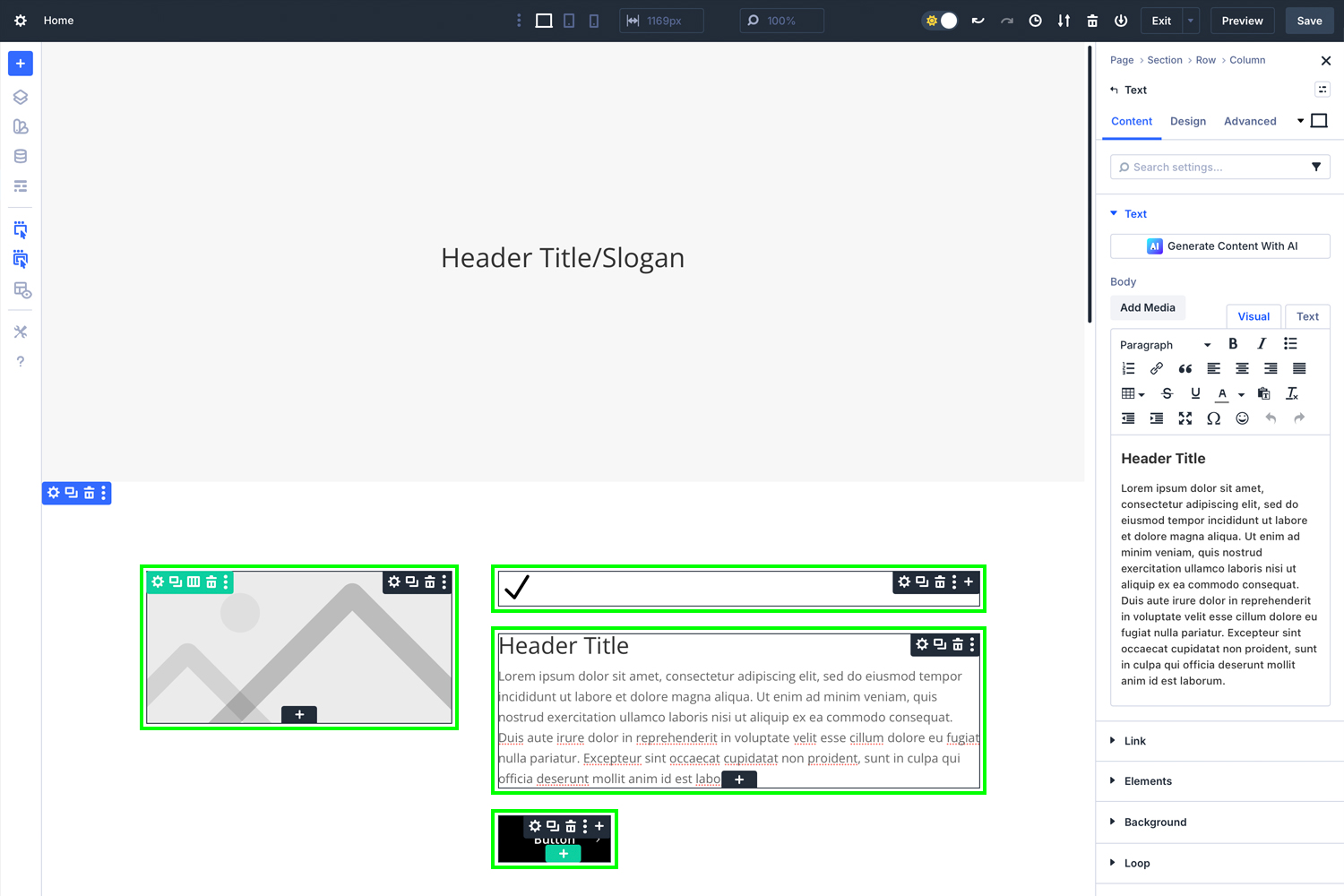
Step 3 – Edit Content On-Screen
You’ll now be in live edit mode.
| Element | How to Edit |
| Text | Click text → type directly → Format as required |
| Image | Click image → select gear icon → Upload → Insert |
| Buttons | Click button → adjust text, link and style |
| Icons / Logos | Click icon module → replace SVG/PNG if needed |

Step 4 – Adjust Sections, Rows, Modules
Divi uses three building blocks.
| Colour | Represents |
| Blue | Sections |
| Green | Rows |
| Grey | Modules (text, image, button) |
Click the gear icon on any element to adjust content or design settings.
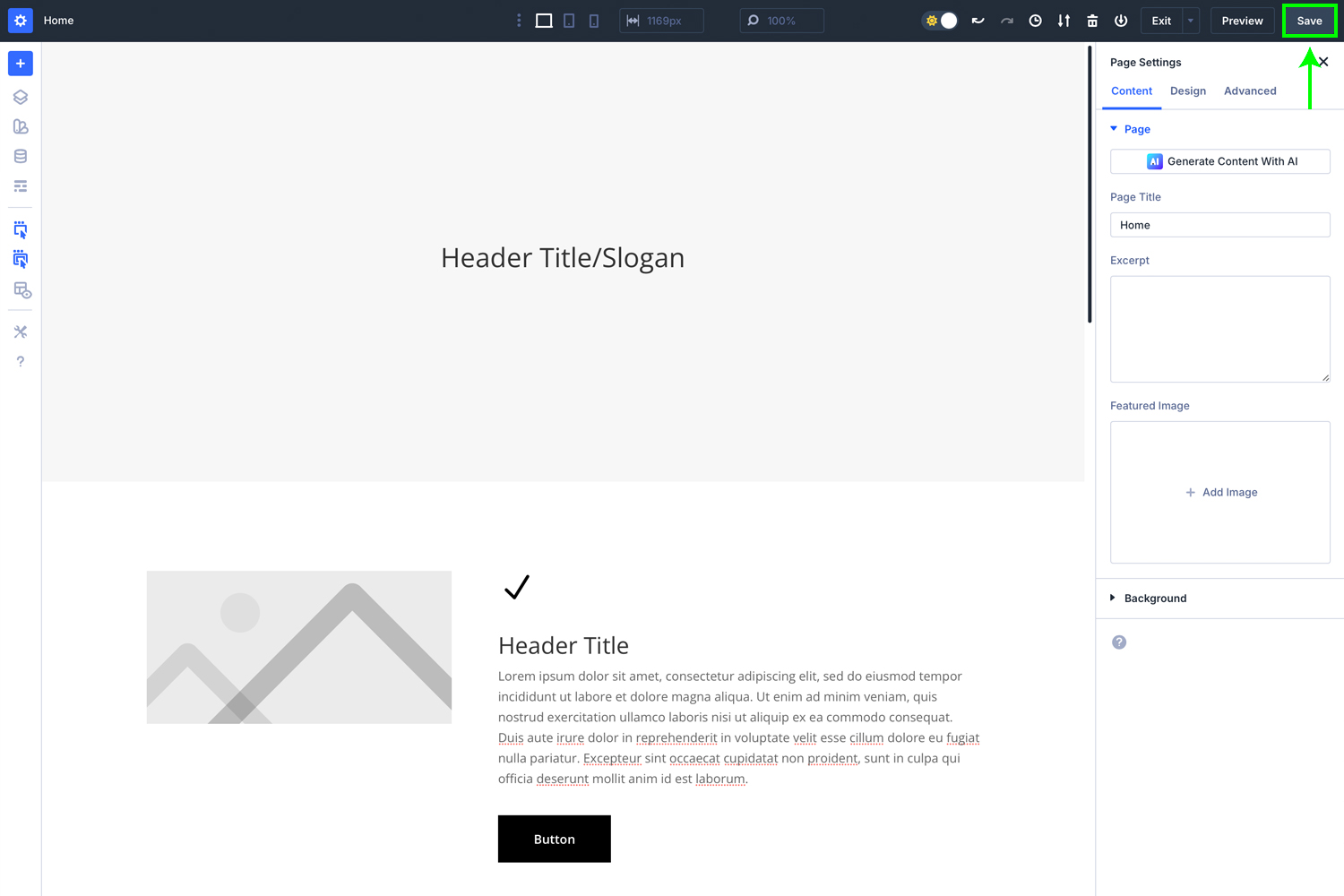
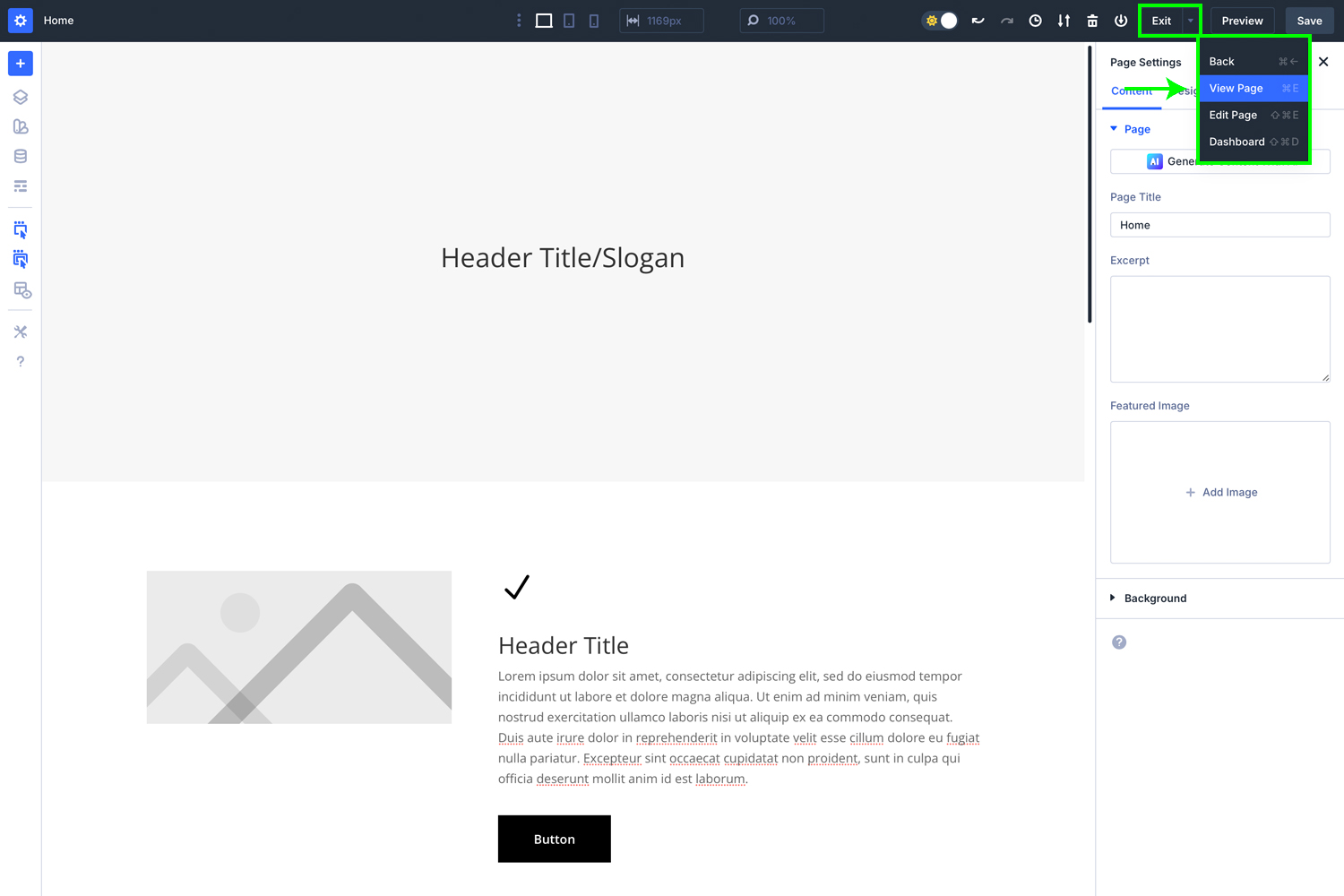
Step 5 – Save Your Changes
- Click Save top-right
- Exit Visual Builder (Exit → View Page)
- Refresh page to confirm changes
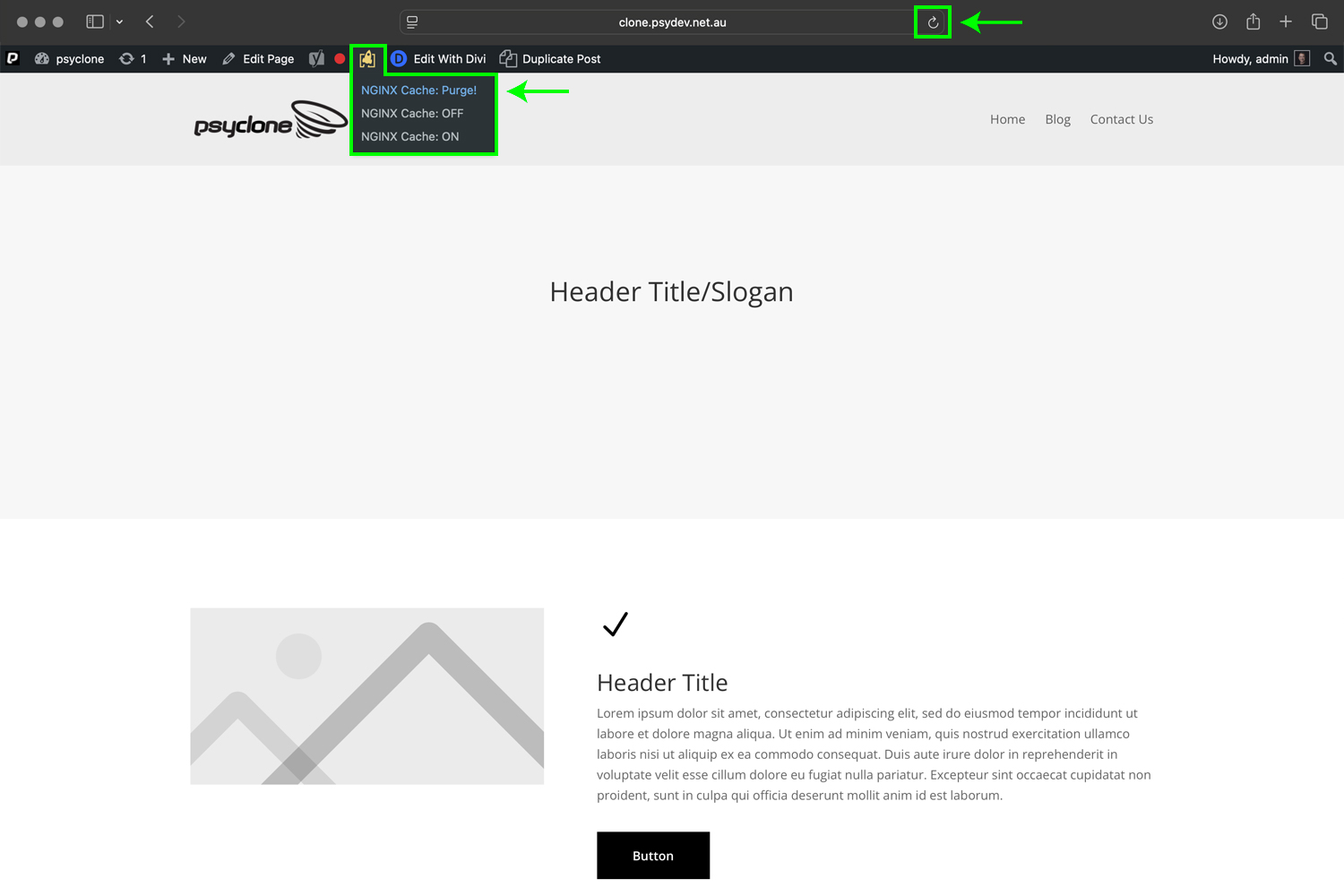
Step 6 – Clear Cache (If Required)
If updates don’t appear:
- Clear browser cache
- Refresh
- If still not visible, clear site cache via your hosting panel
Best Practice
- Keep edits simple and consistent
- Match font styles
- Use compressed images for speed (JPG for photos, PNG for graphics)
- Review on mobile before saving
Part mind. Part machine.

Daniel Borg
Creative Director
psyborg® was founded by Daniel Borg, an Honours Graduate in Design from the University of Newcastle, NSW, Australia. Daniel also has an Associate Diploma in Industrial Engineering and has experience from within the Engineering & Advertising Industries.
Daniel has completed over 2800 design projects consisting of branding, content marketing, digital marketing, illustration, web design, and printed projects since psyborg® was first founded. psyborg® is located in Lake Macquarie, Newcastle but services business Nation wide.
I really do enjoy getting feedback so please let me know your thoughts on this or any of my articles in the comments field or on social media below.